Sign in and change your password
Create your account, sign in, reset a forgotten password or change it.
Create an account
- On the sign-in page, click Create an account.
- Enter your Email and a Password of at least 6 characters, and the password again under Confirm Password.
- Click Sign up.
You're in at once — there's no email to confirm — working in your first workspace. Invited by a teammate? Sign up through the link in the invitation email: it fills in your email, and you join their workspace.
Sign in
Enter your Email and Password and click Login. SalesBullet keeps you signed in on that browser, even after you close it; after several days without using it, you sign in again.
To sign out, click your avatar at the top right, then Log out.
Note
After 5 wrong passwords in a row the account is locked for 15 minutes.
Forgot your password
- On the sign-in page, click Forgot Password?
- Enter your email and click Send Reset Link.
- Open the "Reset Password" email and click its link — it works for one day.
- Enter your email, then the new password twice, and click Set new password.
- Click Log in and sign in with the new password.
No email? Look in your spam folder, and check it's the address you signed up with — only an address with an account gets one.
Change your password
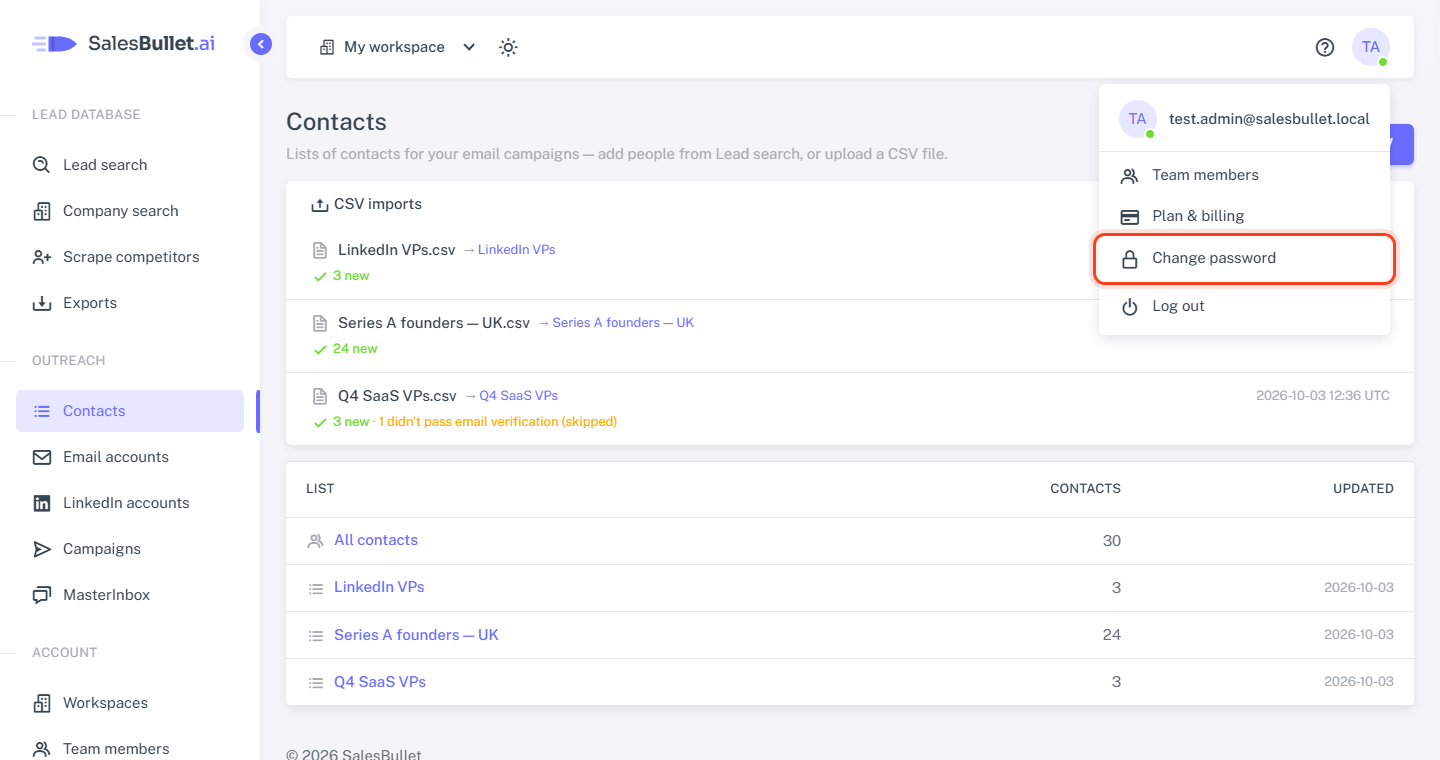
- Click your avatar at the top right, then Change password.
- Enter your Current password, a New password, and the new one again under Confirm new password.
- Click Change Password.
You stay signed in, and the page says "Your password has been changed."