Labels
Sort your conversations with nine built-in labels and your own — positive ones count as opportunities.
Every conversation in the MasterInbox has one label. Change it with the select at the top of the conversation, and show one label's conversations with the buttons above the list. To make your own, click Labels at the top right of the MasterInbox.
The built-in labels
| Label | Counts as | When it fits |
|---|---|---|
| Lead | Neutral | A reply nobody has labeled yet — it stays here when no other label fits. |
| Interested | Positive | They want to know more or go on: they ask about the offer, prices or next steps, want a call or a demo, or say yes. |
| Meeting booked | Positive | They agree to meet at a set time, or confirm a meeting they booked. |
| Meeting completed | Positive | The meeting with them has taken place. |
| Won | Positive | They became a customer — they bought or signed. |
| Out of office | Neutral | They're away (holiday, leave, travelling) and say when they're back or whom to contact — nothing about the offer. |
| Wrong person | Neutral | They aren't the right person for this, or no longer work there — they may name someone else. |
| Not interested | Negative | They decline or ask not to be contacted: no thanks, not interested, remove me, unsubscribe. |
| Lost | Negative | They were in talks but chose not to go on — went with someone else, no budget. |
A new reply gets Lead, an out-of-office auto-reply Out of office, and an unsubscribe request Not interested. After that, a new message doesn't change the label — except a real reply after an out-of-office, which puts it back to Lead. AI labels can choose a better one for you.
Make your own
- In the MasterInbox, click Labels.
- Under New label, give it a Name — for example "Pricing question".
- Choose what it Counts as: Positive — an opportunity, Neutral or Negative. You can't change this later.
- Add a Description — what it means. The AI goes by it.
- Leave The AI can use it ticked if the AI may put it on replies, and click Create.
Your labels come after the built-in ones, and in a conversation's select under Your labels. A workspace can have up to 50 of its own.
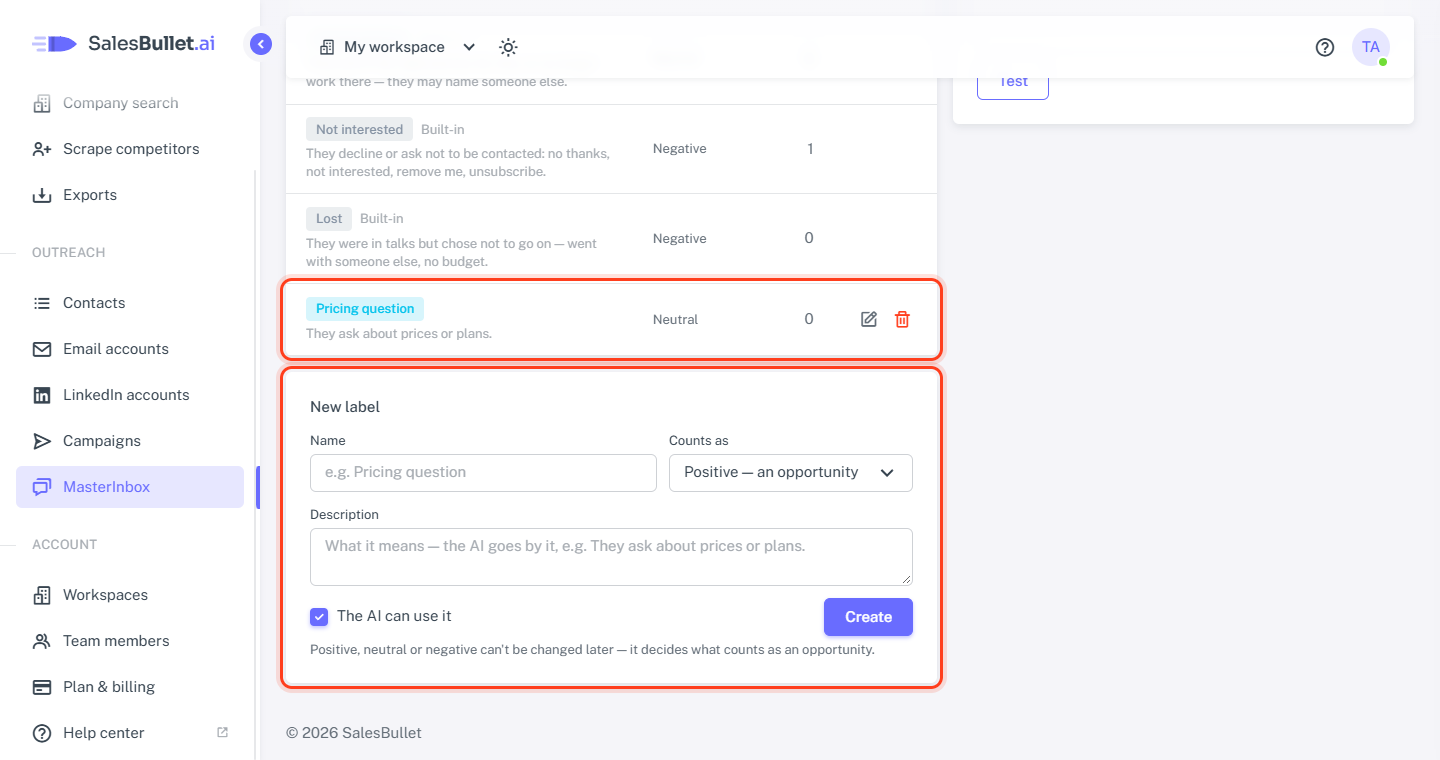
Edit or delete one
- The pencil (Rename or describe) changes a label's name and description — not what it counts as.
- The bin (Delete) asks first. If conversations have the label, choose the label they get instead — Lead, unless you pick another — then click Delete.
The built-in labels can't be changed or deleted.
Positive labels are opportunities
Conversations with a positive label — Interested, Meeting booked, Meeting completed, Won and your own positive ones — count as Opportunities on a campaign's Analytics tab. That's why what a label counts as is fixed once it's made: changing it would change your numbers.