Upload contacts from a CSV file
Import your own contacts from a CSV file — columns matched for you, emails verified, in the background.
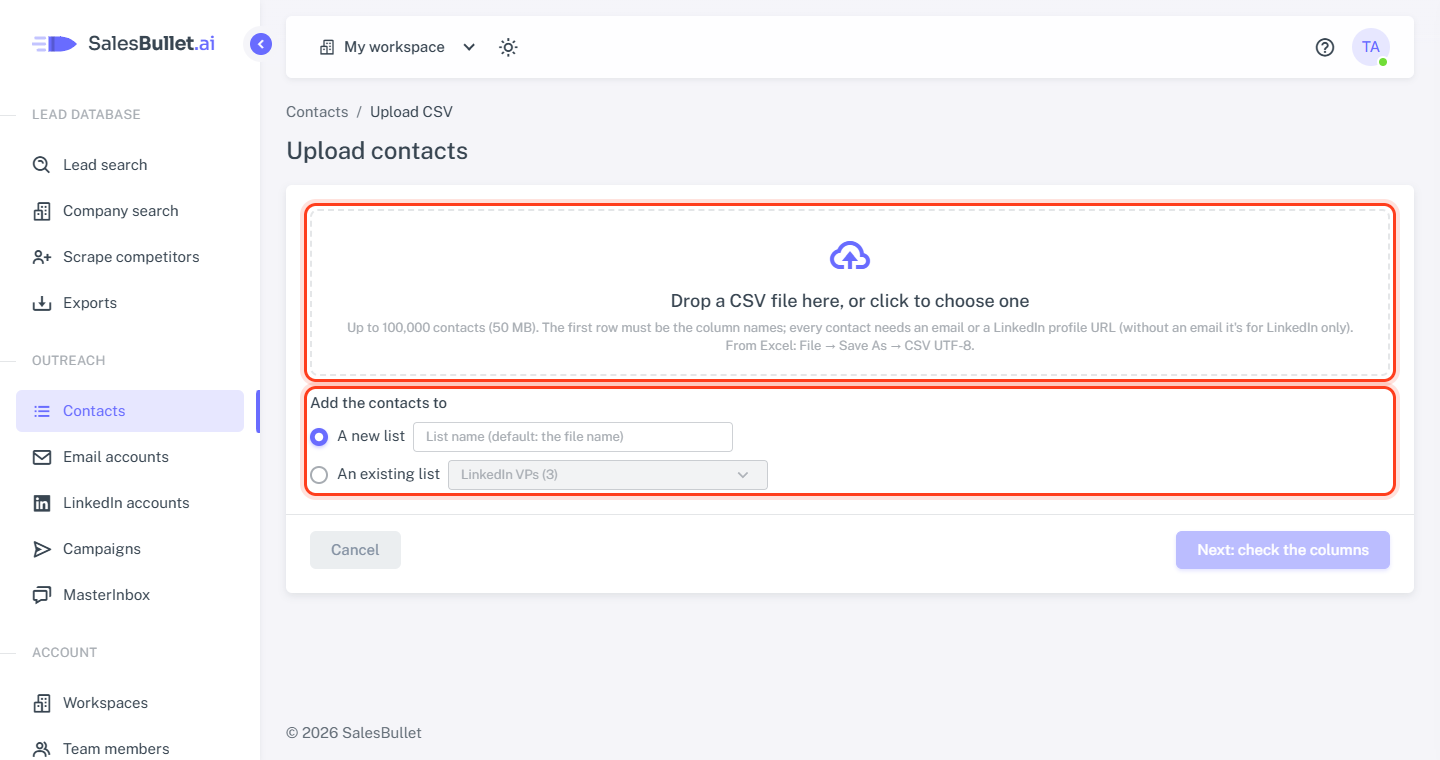
Bring in contacts from Excel, your CRM or any other tool — up to 100,000 per file (50 MB). The first row holds the column names; every contact needs an email or a LinkedIn profile URL.
Choose the file and the list
- Open Contacts and click Upload CSV — or Upload CSV on a list's page, to add to that list.
- Drop the file on the box, or click the box to choose it.
- Under Add the contacts to, pick A new list — named after the file unless you type a name — or An existing list.
- Click Next: check the columns.
Tip
From Excel: File → Save As → CSV UTF-8.
Check the columns
The next page shows each column of your file, a few of its values, and what it becomes under Import as. Most are matched for you — by name ("First Name" = "first_name"), by content (a column of emails is the email), or by what you chose for that column last time. Change any of them:
- A contact field: Email, First name, Last name, Full name, Job title, Company name, Company domain, Company website, Company LinkedIn URL, Industry, LinkedIn URL, Phone, Mobile, City, State or Country.
- Custom field “Pain point” (for a column called Pain point) — keeps it under its own name, for your messages:
{{pain_point}}— see variables. - Don't import — what columns we don't recognize get.
One column must be the email or the LinkedIn profile URL, and each field can be chosen once.
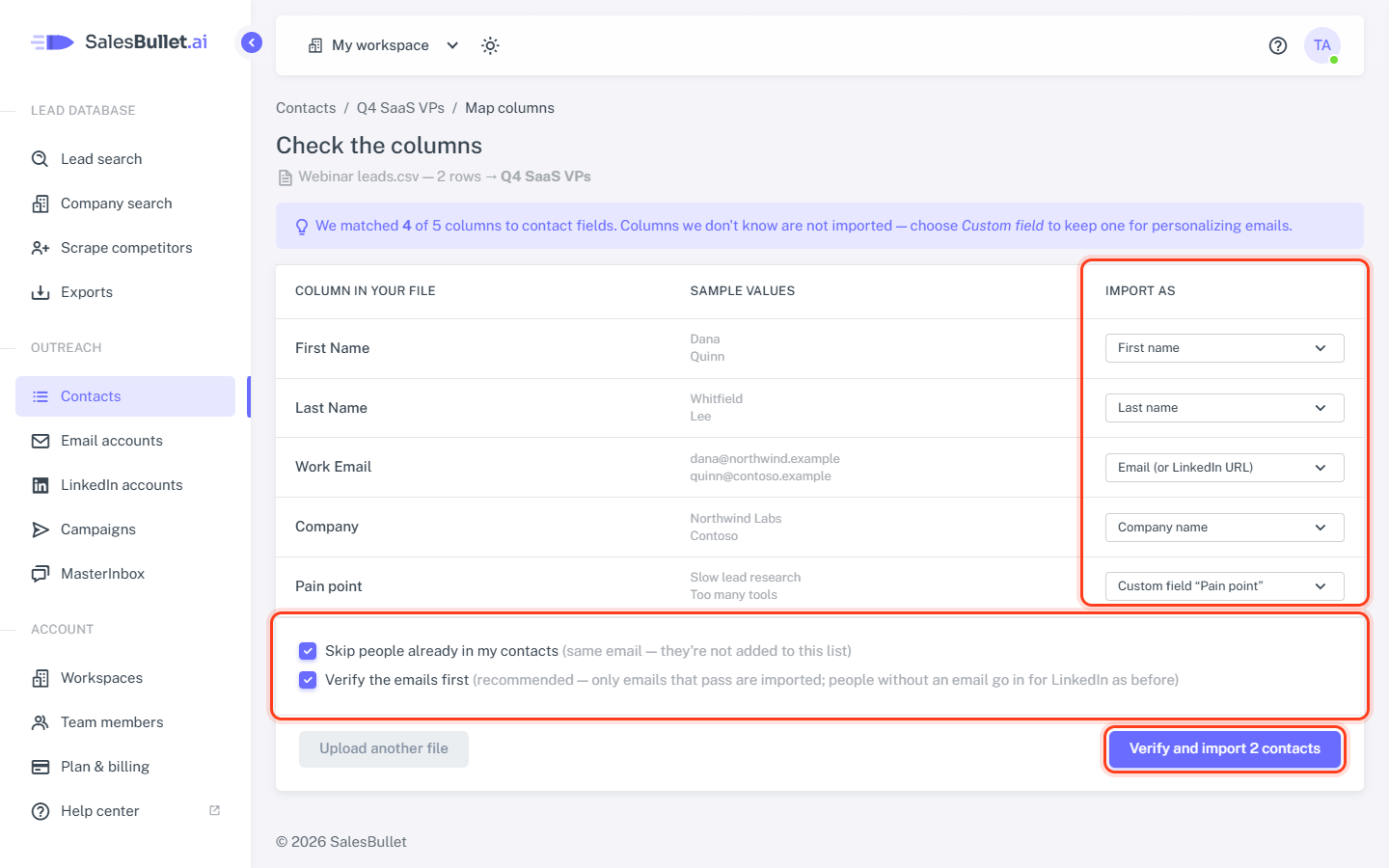
Below the columns:
- Skip people already in my contacts (ticked) — people you have already, by email or LinkedIn profile, are left out. Untick it to put them in this list too; the file then only fills in what their contact is missing.
- Verify the emails first (ticked) — only emails that pass go in. See Verify emails.
Click Verify and import — or Import without verifying.
The import runs in the background
You're taken to the list, where the CSV imports box shows the progress — verifying, then importing. You can leave meanwhile; the page reloads when it's done. Then it sums up: how many are new, already in your contacts, duplicates in the file, without a valid email or LinkedIn profile, or didn't pass email verification.
If an import stops with an error, click Try again — nothing is imported twice. Your file is deleted once imported.
Rows with only a LinkedIn URL
A row with a LinkedIn profile URL (linkedin.com/in/…) but no valid email comes in for LinkedIn only — LinkedIn only in the list. LinkedIn and Email + LinkedIn campaigns use it; email campaigns skip it. A row with neither is skipped.