HubSpot
Connect HubSpot — leads who reply go there with their emails, label and deal, your HubSpot customers stop getting emails, and HubSpot lists come into your contacts.
CRM, in the menu under Account, connects the workspace you're in to your HubSpot account. It's part of the Unlimited plan (plans).
Connect HubSpot
- Go to Account → CRM and click Connect HubSpot. Only the workspace's owner can.
- HubSpot opens: choose your HubSpot account and click Connect app. You need to be a Super Admin in that HubSpot account.
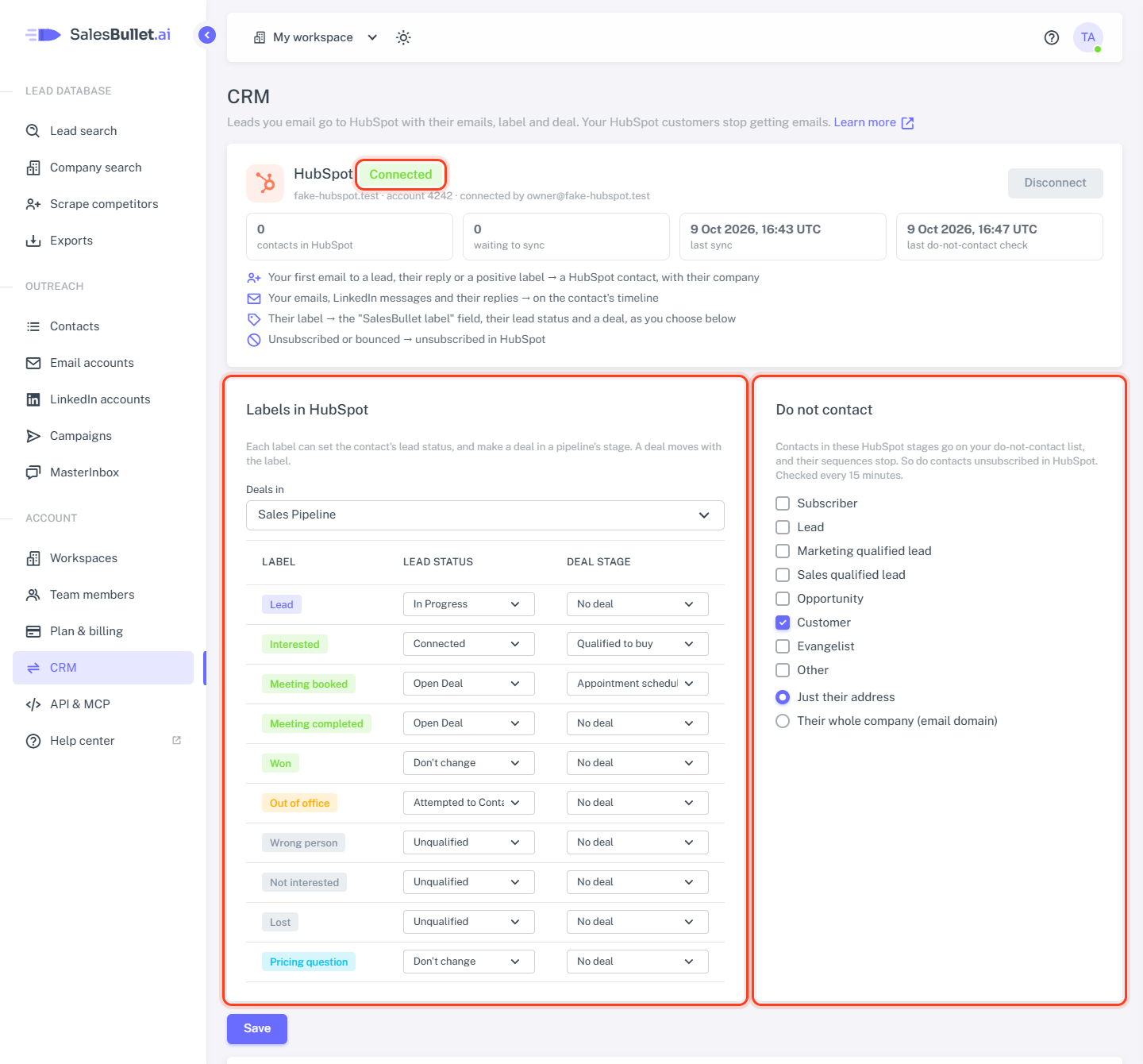
- You're back on the CRM page, which now says Connected, with your HubSpot account.
One HubSpot account per workspace. An agency connects each client's workspace to that client's HubSpot.
What goes to HubSpot
| In SalesBullet | In HubSpot |
|---|---|
| A lead replies, or gets a positive label — Interested, Meeting booked, Meeting completed, Won or one of your own positive labels, set by you or the AI | A contact, found by email — or a new one with their name, job title, company, phone, location and LinkedIn URL, linked to their company |
| Your emails and their replies | On the contact's timeline. A new contact gets the conversation so far |
| Your LinkedIn messages and theirs — connection request notes, messages, InMails, replies | On the contact's timeline as LinkedIn messages |
| The lead's label | The SalesBullet label field on the contact, and its Lead status — see Labels in HubSpot below |
| A label you gave a deal stage | A deal in that stage |
| They unsubscribe, or their address bounces | Unsubscribed from all email |
Leads who never wrote back stay in SalesBullet: HubSpot only gets people who engaged. A contact HubSpot already has keeps its fields — SalesBullet only adds the label and the emails. Changes reach HubSpot within a minute or two.
Labels in HubSpot
Each label can set the contact's Lead status and make a deal. Change them and click Save.
- Lead status — until you change them: Lead → In progress, Interested → Connected, Meeting booked and Meeting completed → Open deal, Out of office → Attempted to contact, Wrong person, Not interested and Lost → Unqualified. Won and your own labels leave it as it is (Don't change).
- Deals — choose a pipeline under Deals in, then a stage for each label, or No deal. Until you choose a pipeline, no deals are made. A lead's deal is made at the first label that has a stage, and moves when the label moves to another one with a stage. Each contact has one deal, named after the company and the campaign ("Acme — Spring outreach"). Its owner is the HubSpot user with the email of the person who made the campaign.
Do not contact
Contacts in the HubSpot lifecycle stages you tick — Customer, unless you change it — go on your do-not-contact list, and their running sequences stop. So do contacts who unsubscribed from all email in HubSpot. Choose whether that's just their address or their whole company (the email's domain — never a free provider such as Gmail).
SalesBullet checks every 15 minutes. The first check, right after you connect or change the stages, reads all of your HubSpot.
Import a HubSpot list
Under Import a HubSpot list, pick the HubSpot contact list, the contact list it goes into (or New list), and whether to skip people already in your contacts. Click Import: up to 100,000 contacts come in, in a minute or two. Contacts without an email are left out; their LinkedIn URL comes along when HubSpot has one.
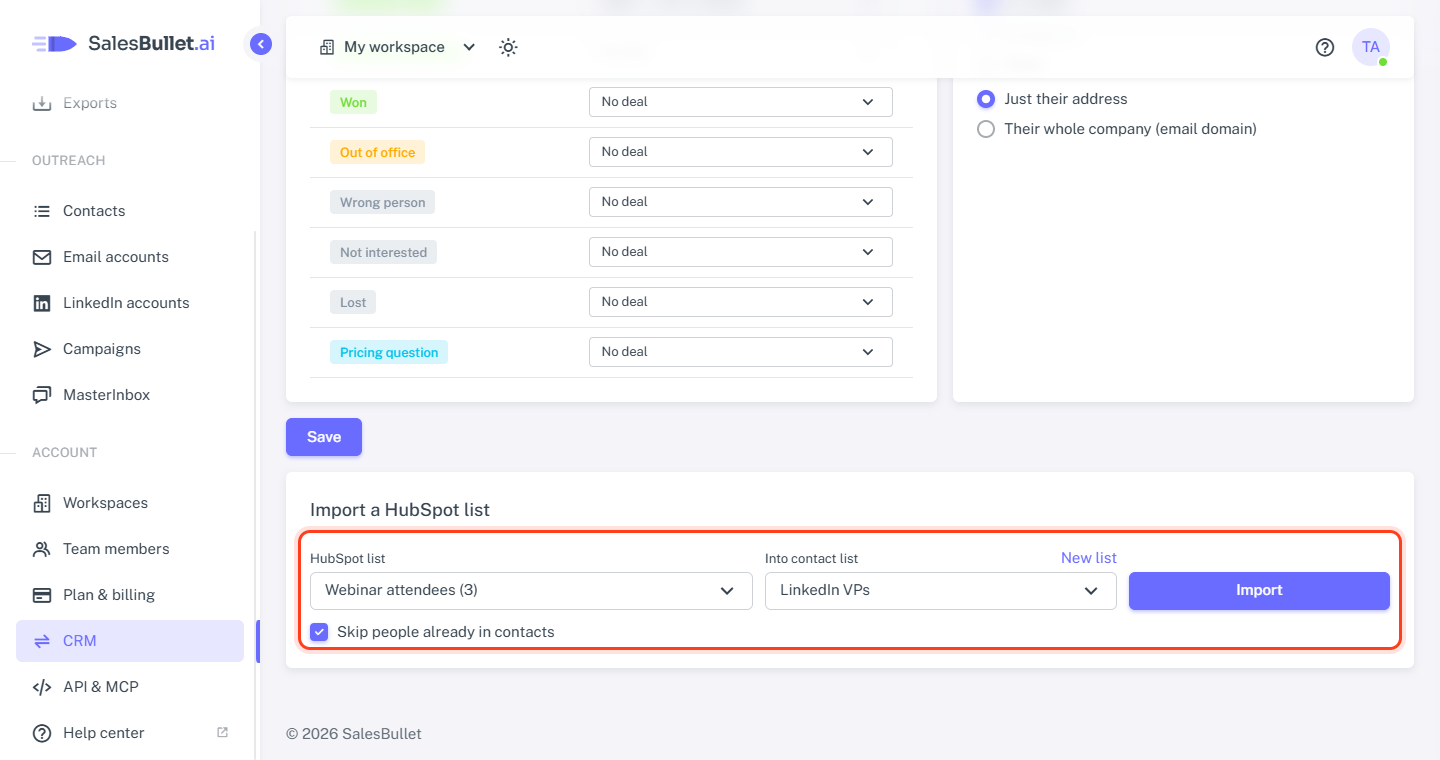
Imported contacts are linked to HubSpot from the start: your emails to them go on their HubSpot timeline from the first one.
When something doesn't sync
- Not synced lists the leads HubSpot refused after several tries, with HubSpot's reason. Fix it in HubSpot — a required field, for example — then click Try again.
- Needs reconnecting: SalesBullet was removed from your HubSpot, or HubSpot needs new permissions. Click Connect again — your settings stay.
- On the Free plan nothing syncs; it starts again when you're back on Unlimited.
Disconnect
Disconnect stops everything at once. What's in HubSpot stays there. To remove SalesBullet from HubSpot too, open HubSpot's Settings → Integrations → Connected Apps and uninstall SalesBullet.