Connect Gmail or Google Workspace
Connect a Gmail or Google Workspace mailbox with an app password: what to fill in, the test, common errors.
SalesBullet connects Gmail and Google Workspace mailboxes with an app password: a separate 16-character password that Google makes for one app. Your normal Google password doesn't work here, and SalesBullet never asks for it.
Create an app password
App passwords need 2-Step Verification on the Google account.
- In the Google account's security settings, turn on 2-Step Verification if it's off.
- Open App passwords — the form links there too.
- Type a name, such as SalesBullet, and create it.
- Copy the password Google shows. It's shown only once — if you lose it, make a new one.
Note
No App passwords page? Google doesn't offer them when 2-Step Verification uses security keys only, with Advanced Protection, or when a Google Workspace admin hasn't allowed them — ask your admin.
Connect the mailbox
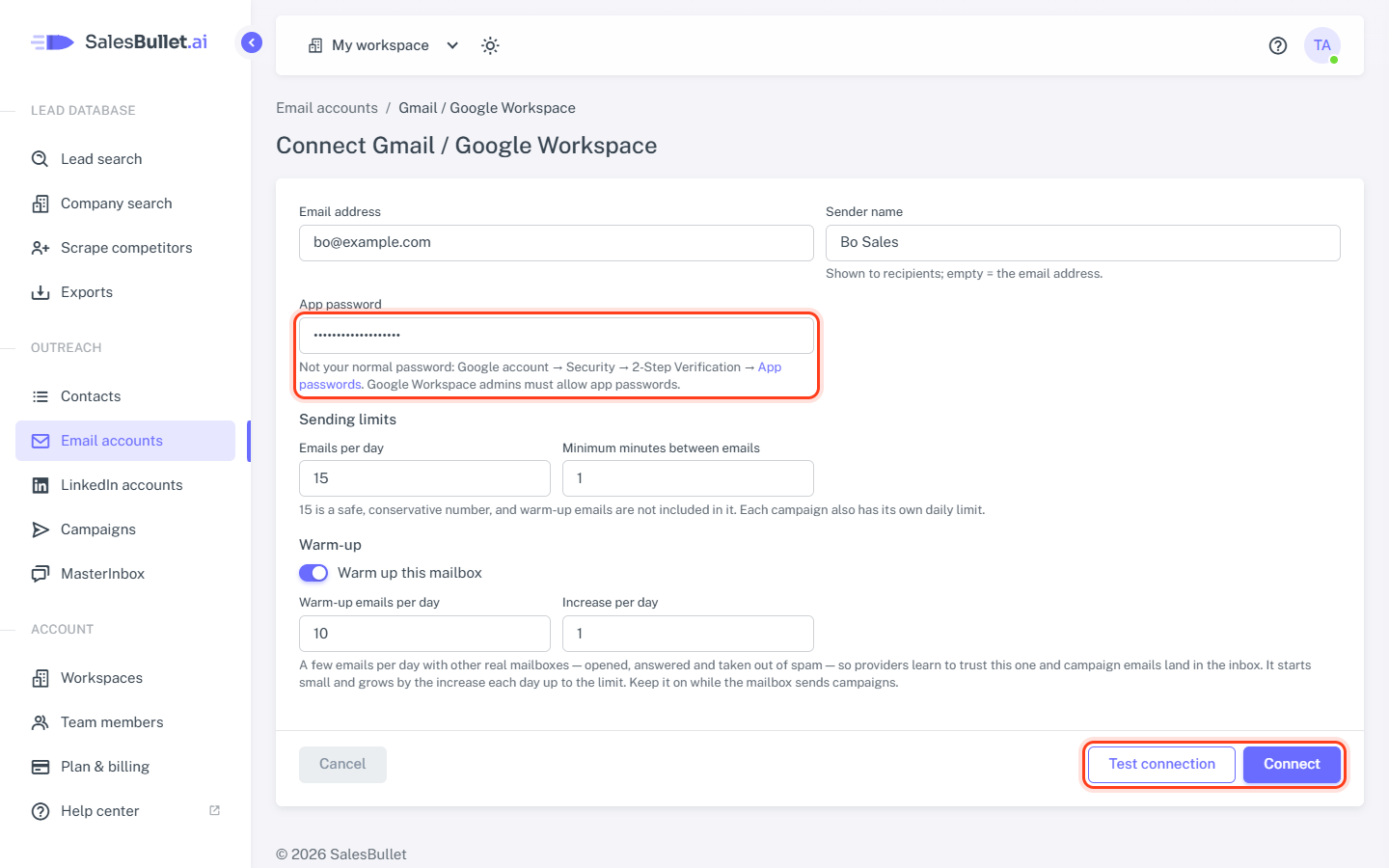
- Open Email accounts, click Add your own and choose Gmail / Google Workspace.
- Email address — the mailbox's address.
- Sender name — the name your leads see, such as Bo Sales. Left empty, they see the email address.
- App password — paste it, with or without the spaces.
- Sending limits and Warm-up start with safe defaults — see Sending limits and pace and Warm up your email accounts.
- Click Test connection. Both lines should say "works": Sending (SMTP) and Reading replies (IMAP).
- Click Connect.
There are no servers to type: SalesBullet uses Google's. Connect checks the login again and saves the mailbox only when both work — it's on the list as Active.
If the test fails
- "Google refused the login. Use an app password (…), not your normal password." — the normal Google password was typed, or the app password was mistyped or deleted. Make a new app password and paste it.
- "The SMTP server can't take the login right now: …" (or the IMAP server) — Google is busy or saw too many logins. Wait a few minutes and test again.
- "… is already connected." — the mailbox is on your list already.
Later: a new Google password
Changing the Google password cancels the account's app passwords, so the mailbox stops sending and shows as Disconnected. Make a new app password, click the mailbox's address on Email accounts, paste it into App password and click Save. More in When an email account stops working.