Connect Microsoft 365 or Outlook
Turn on Authenticated SMTP, then Sign in with Microsoft — and what to do when the sign-in stops working.
Microsoft 365 and Outlook mailboxes connect with Sign in with Microsoft: you choose the mailbox and allow SalesBullet to send and read its email. We never see the password. On Email accounts, click Add your own and choose Microsoft 365 / Outlook — the page has two steps.
1. Turn on Authenticated SMTP
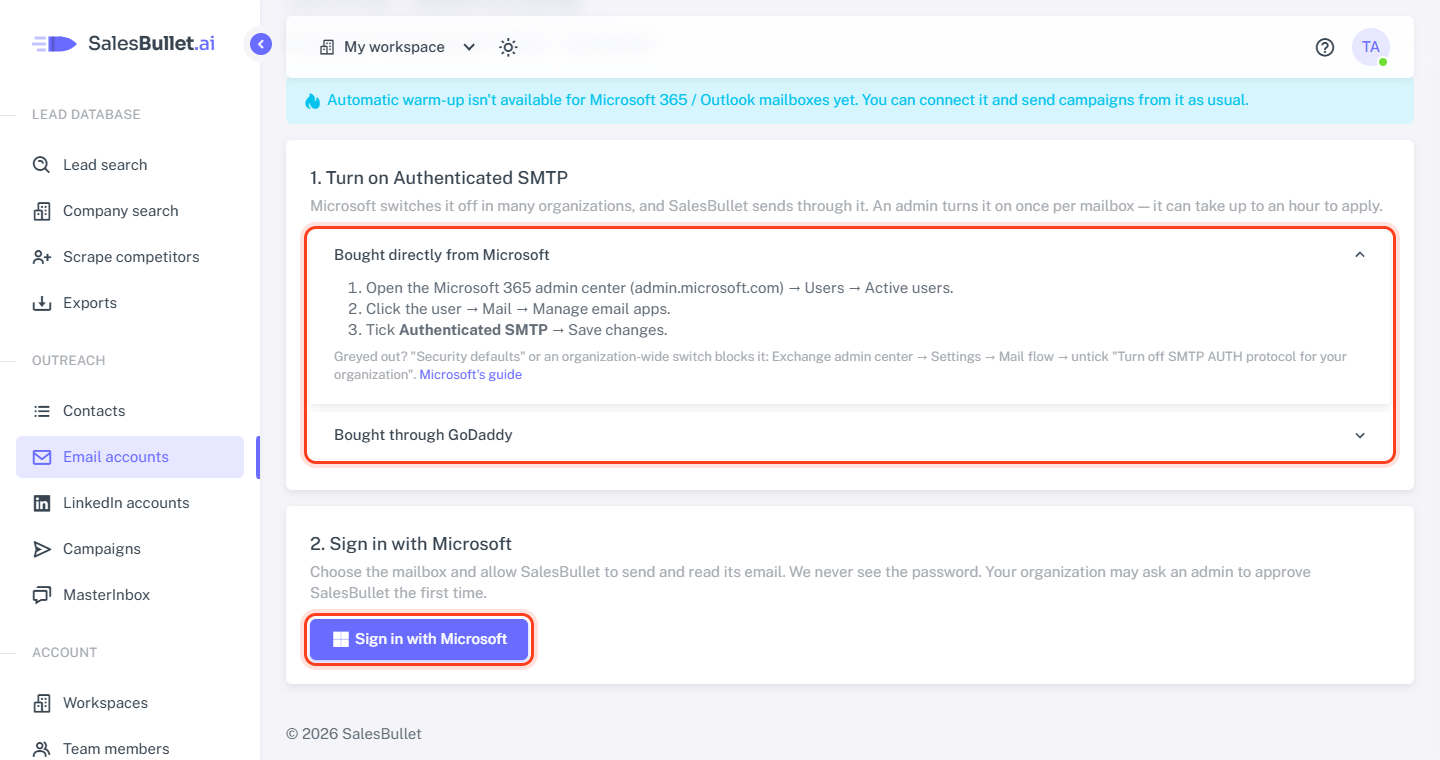
SalesBullet sends through Authenticated SMTP, which Microsoft switches off in many organizations. An admin turns it on once per mailbox; it can take up to an hour to apply. The page shows how:
- Bought directly from Microsoft — Microsoft 365 admin center: Users → Active users → the user → Mail → Manage email apps → tick Authenticated SMTP → Save changes. Greyed out? The page says which organization-wide switch blocks it.
- Bought through GoDaddy — in GoDaddy's Email & Office Dashboard, open the mailbox's settings and turn on SMTP Authentication, or ask GoDaddy's support.
Then click Yes, SMTP is turned on.
2. Sign in with Microsoft
- Click Sign in with Microsoft.
- Choose the mailbox and allow SalesBullet. The first time, your organization may ask an admin to approve SalesBullet.
- Back on Email accounts: "… is connected." It starts at 15 emails per day — see Sending limits and pace.
Note
Automatic warm-up isn't available for Microsoft 365 / Outlook mailboxes yet. You can send campaigns from them as usual.
If it doesn't connect
- "The sign-in was cancelled, or your organization doesn't allow SalesBullet yet" — a Microsoft 365 admin can approve it.
- "… is saved, but it can't send yet: … Authenticated SMTP is off for this mailbox" — it's on the list with Error. Once the admin has turned it on, click Check again (↻) on its row, or wait: it's checked again by itself.
- "… couldn't open the mailbox ("User is authenticated but not connected")" — if it keeps happening, IMAP is off for the mailbox: an admin turns it on under Manage email apps.
- "… is already connected with a password — remove it first."
When the sign-in stops working
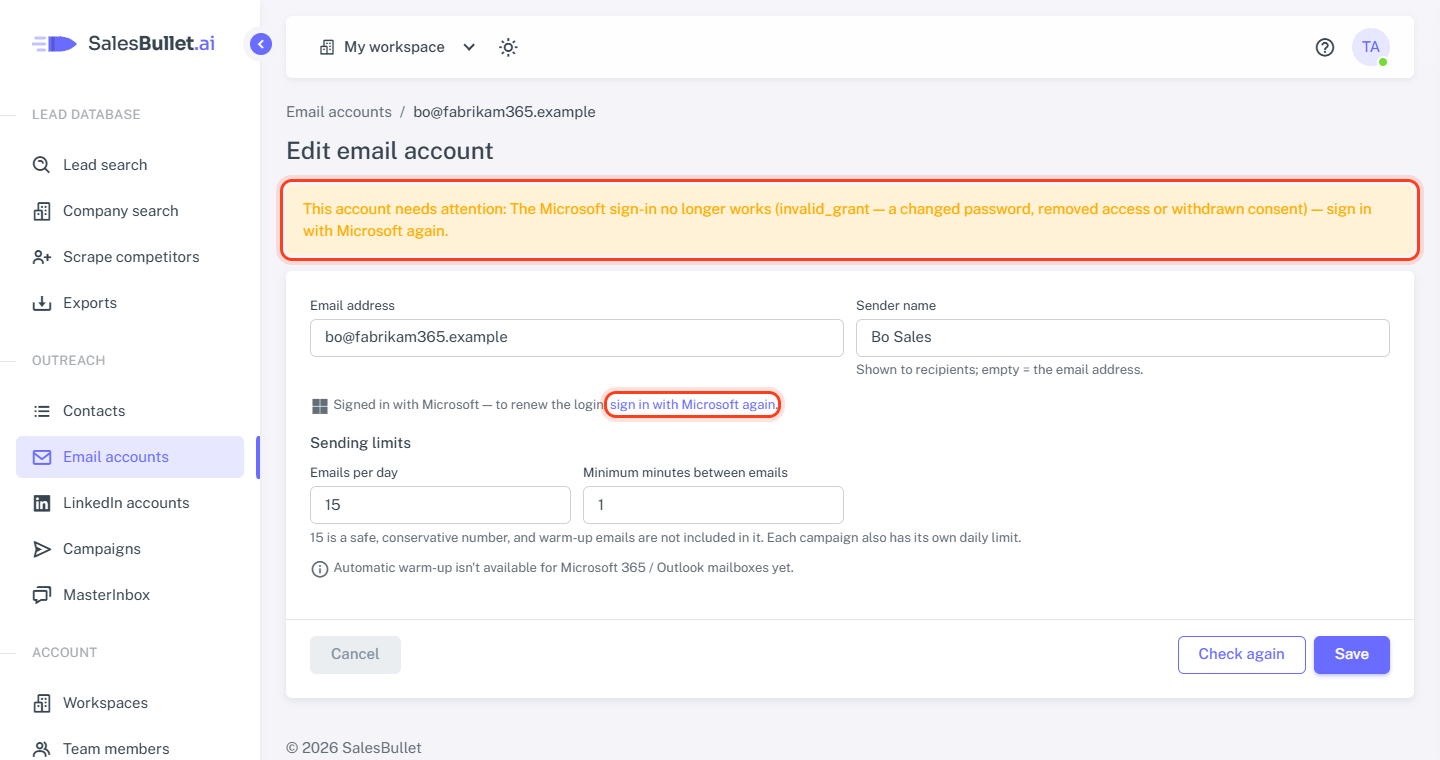
A changed password, removed access or withdrawn consent ends the sign-in. The mailbox shows Disconnected — "The Microsoft sign-in no longer works … — sign in with Microsoft again" — and whoever connected it gets an email. Only you can fix it; it isn't checked again by itself.
- On Email accounts, click the mailbox's address.
- Click sign in with Microsoft again and sign in to the same mailbox.
It works again, with its limits and campaigns as they were.