Import many email accounts from a CSV file
Connect up to 1,000 mailboxes at once from a spreadsheet: the template's columns, the summary and the checks.
Many mailboxes? Put them in a spreadsheet, one row per mailbox, and import up to 1,000 at once.
The template
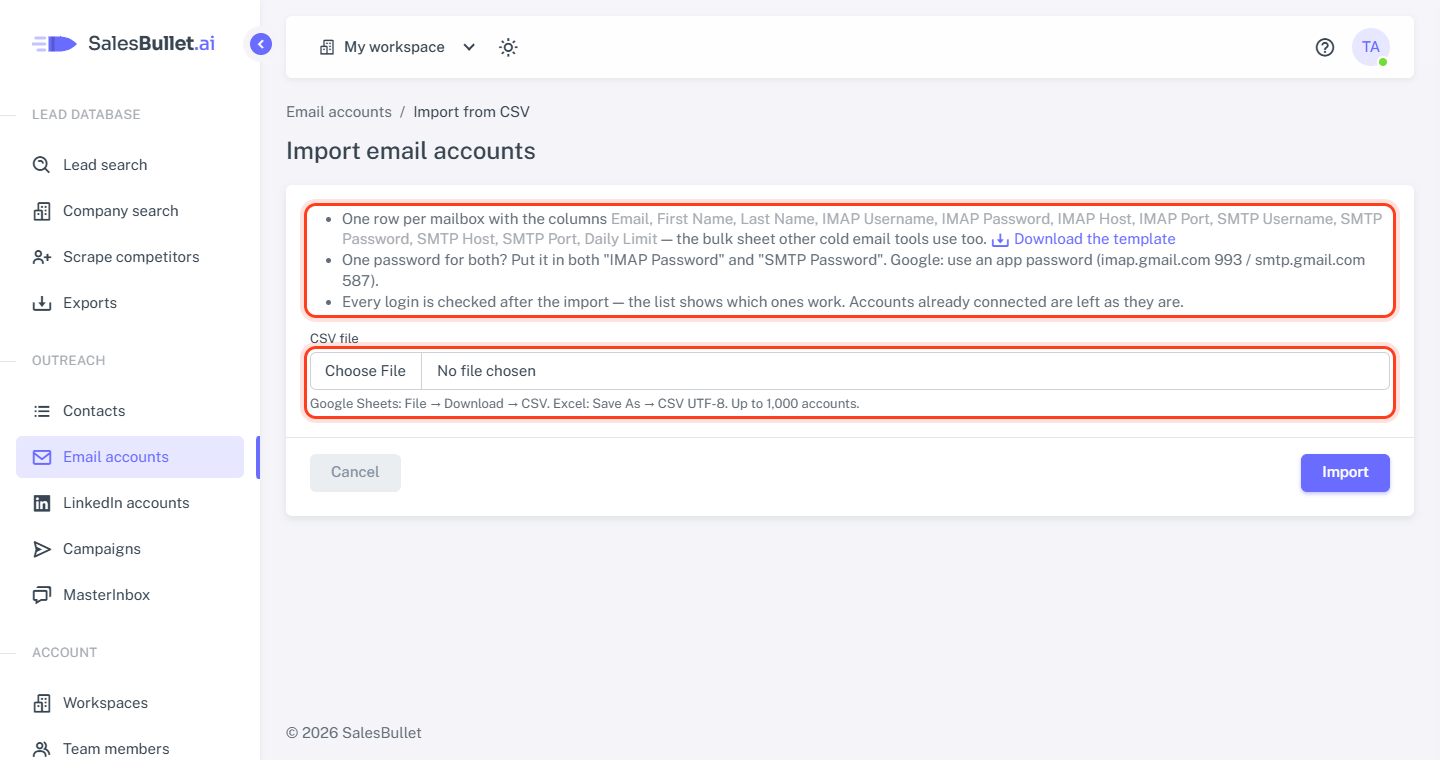
On Email accounts, click Add your own, choose Import from CSV and click Download the template — the bulk sheet other cold email tools use too. Have such a sheet already? Try it as it is: columns are found by their names, in any order, and others are left out.
| Column | What goes in | Left empty |
|---|---|---|
| The mailbox's address | Required | |
| First Name, Last Name | The sender name | The email address |
| IMAP Username, IMAP Password | The login | The email address; the password is required |
| IMAP Host, IMAP Port | The server that reads replies | The host is required; port 993 |
| SMTP Username, SMTP Password | The login for sending | The IMAP ones |
| SMTP Host, SMTP Port | The server that sends | The host is required; port 587 |
| Daily Limit | Emails per day, 1–100 | 15 |
| Warmup Enabled | TRUE or FALSE | On |
| Warmup Limit | Warm-up emails per day, 1–50 | 10 |
| Warmup Increment | How many more each day, 1–4 | 1 |
- One password for both? Put it in both "IMAP Password" and "SMTP Password".
- Google: an app password, imap.gmail.com 993 and smtp.gmail.com 587 (Connect Gmail).
- Port 465 can't be used from our servers — send on 587.
Note
Microsoft 365 and Outlook no longer take passwords for reading email: connect those mailboxes with Sign in with Microsoft.
Import the file
- Save the sheet as CSV — Google Sheets: File → Download → CSV; Excel: Save As → CSV UTF-8.
- Choose it under CSV file and click Import.
The list then sums it up, such as "Added 3 email accounts — checking the logins now. 1 already connected (left as they are)."
- Mailboxes already on your list, or twice in the file, are left as they are. To change one, click it on the list.
- Rows with a problem are named by their row in your sheet (the header is row 1): "Not imported: Row 7 (bo@fabrikamlabs.example): Enter the password." Fix them and import the file again.
- Microsoft 365 / Outlook mailboxes come in without warm-up: it isn't available for them yet.
The logins are checked
The import doesn't wait for the logins: each new mailbox shows Checking…, and the list updates by itself as they're tried. Each becomes Active, Disconnected (the login was refused) or Error (something else, such as a server that can't be reached), with the reason underneath — see When an email account stops working. Warm-up starts once the login works.