Spintax: vary your wording
Write {Hi|Hello|Hey} and each lead gets one of the options, so your messages don't all read the same.
Spintax gives different leads different words. Put the options in braces, with a | between them:
{Hi|Hello|Hey} {{first_name}},
Each lead gets one of them — Dana may read "Hello Dana," and Quinn "Hey Quinn,". It works in subjects and texts, in emails and LinkedIn messages.
Write it
- Spintax, under each message, reminds you how — and Put in {Hi|Hello|Hey} adds an example where you were typing.
- Options can hold variables and more spintax:
{Hi {{first_name}}|Hello there},{great post|your post on {hiring|scaling}}. - Spaces around the options don't matter:
{Hi | Hello}is the same as{Hi|Hello}. - Braces without a
|are just text:{pricing}goes out as it is. - Spintax written for other tools works too:
{{RANDOM | Hi | Hello}}and#{{Hi|Hello}}.
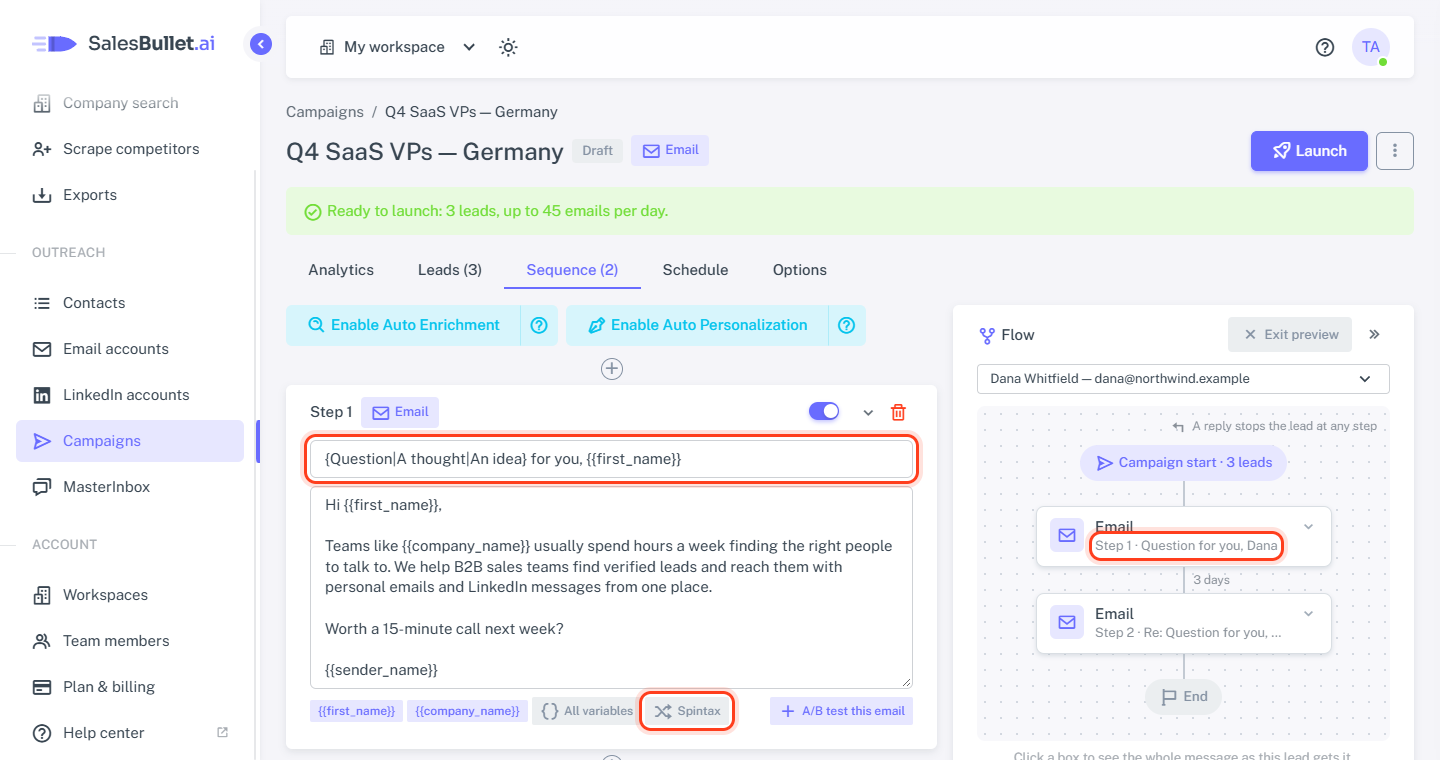
Each lead keeps their option
The option is picked once per lead — for each step, its subject and its text — and never changes. So Preview as a lead shows exactly what that lead will get; choose another lead there to see theirs. Across many leads, each option comes up about equally often.
A { with options that never closes is refused when you save, for example: "Step 1: the spintax "{Hi|Hello there"
has no closing }." Add the } and save again.
LinkedIn's length limits
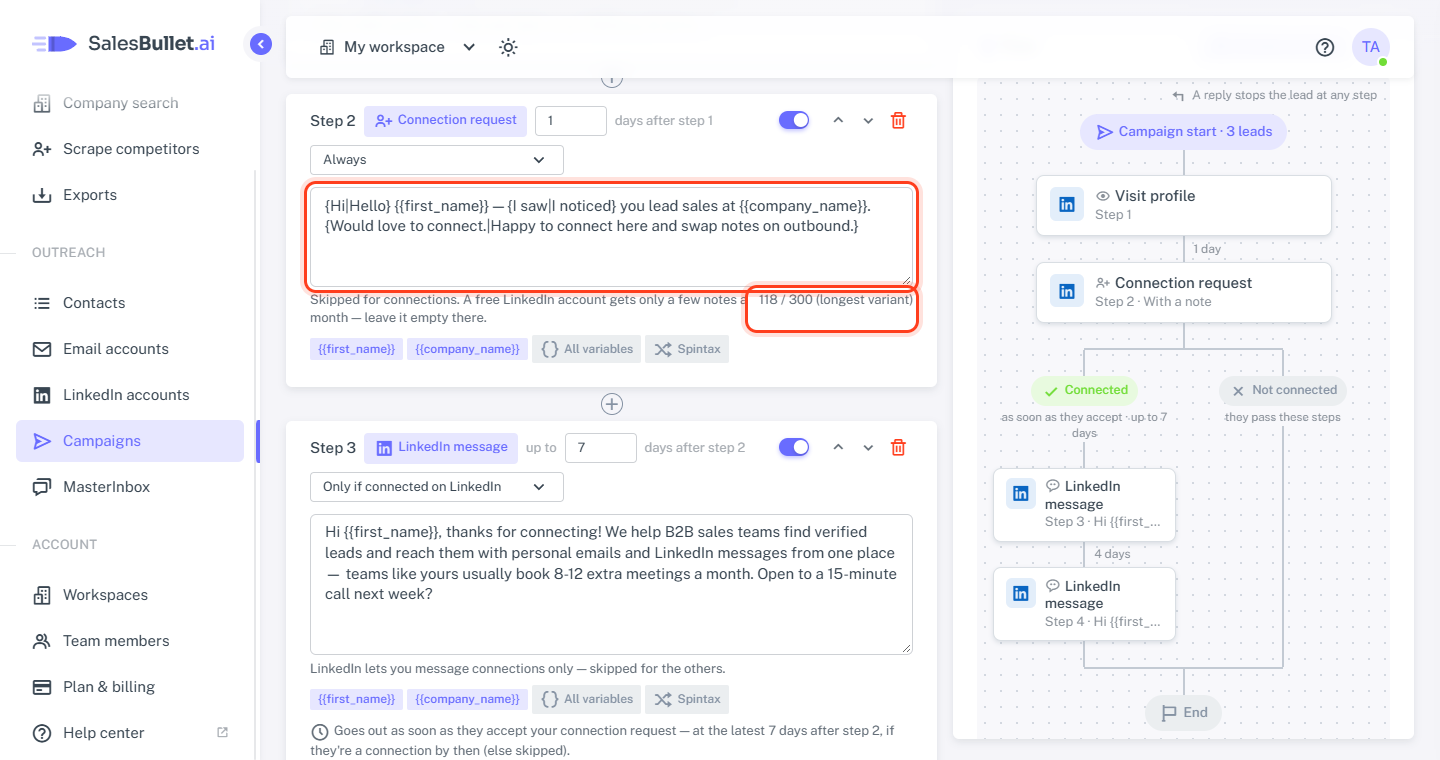
LinkedIn limits a connection request's note to 300 characters, a message to 8,000 and an InMail to 1,900, its subject to 200. With spintax, the longest version must fit: the note's counter counts that one and says (longest variant). Saving checks every step this way — an email's subject too, at 300 characters.
Tip
Spintax varies the words at random, and Analytics doesn't count each option. To compare two versions of an email by their replies, A/B test it.