Create a campaign and add leads
Name a new campaign, choose its channels, add the people on your contact lists as its leads — or duplicate one.
A campaign sends a sequence of messages to its leads — the people on your contact lists. Nothing goes out until you launch it.
Create the campaign
- Open Campaigns and click New campaign.
- Give it a Name, such as "Q4 SaaS VPs — Germany".
- Choose its Channels:
- Email — emails from your email accounts.
- LinkedIn — profile visits, connection requests, messages, InMails and likes from your LinkedIn accounts.
- Email + LinkedIn — both in one sequence.
- Click Create. The campaign opens on its Leads tab as a Draft.
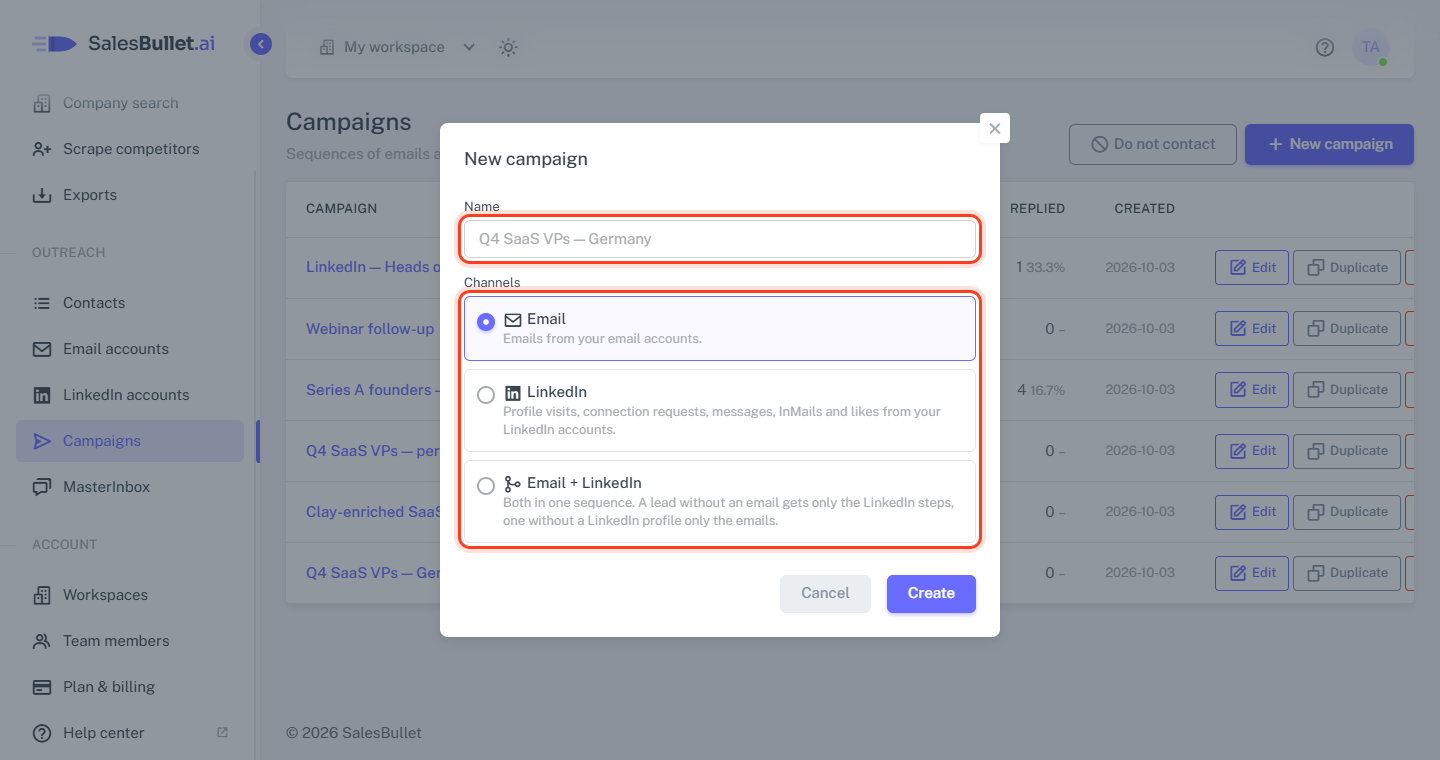
The channels stay as you chose them — for other channels, create another campaign. The campaign's schedule starts in your browser's time zone; you can change it on the Schedule tab.
Add leads from your lists
On the Leads tab, under Add contacts from lists:
- Tick one or more lists — the number beside each is how many contacts it has.
- Leave Skip people who are active in another campaign ticked, unless you want them in both.
- Click Add leads.
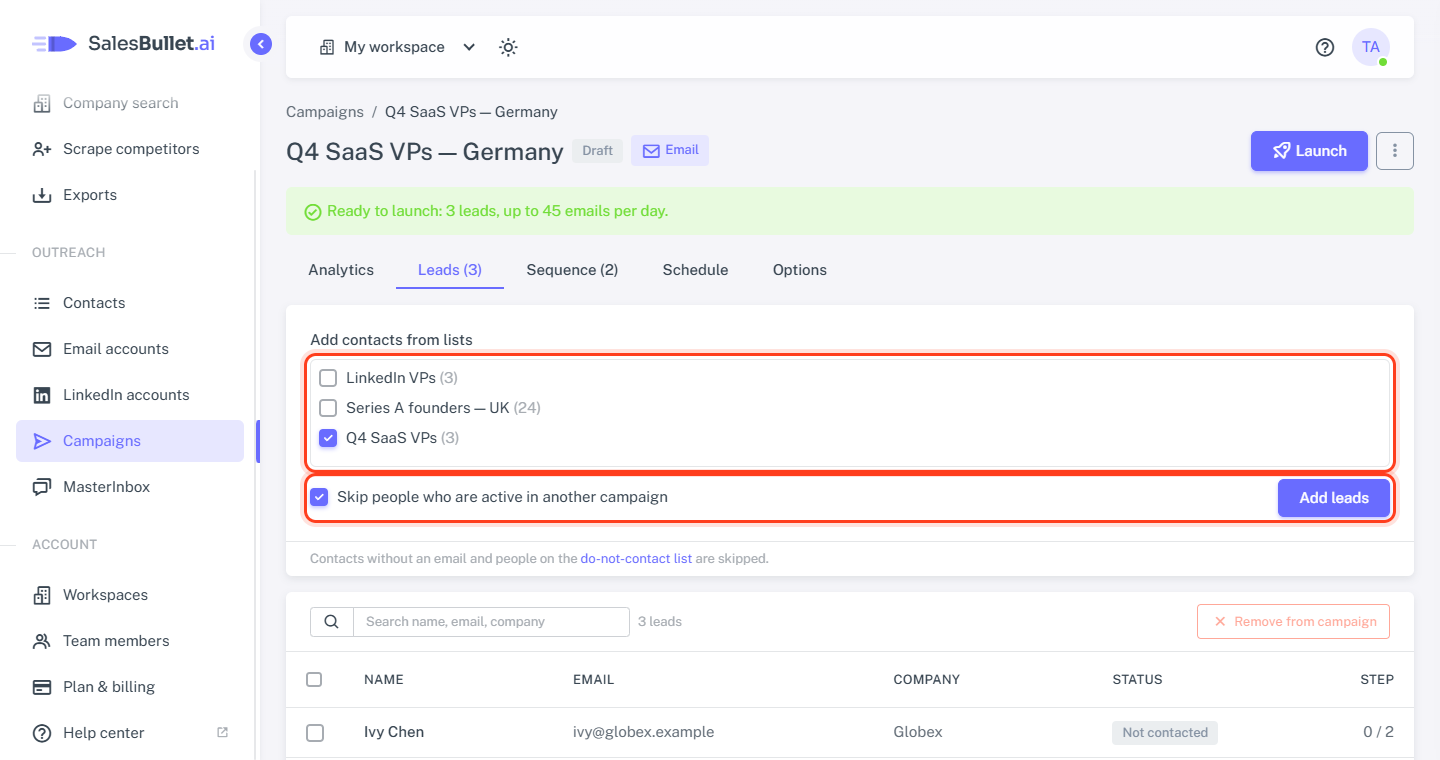
A message then says how many were added and why the others were skipped — for example "Added 2 leads. Skipped: 1 on the do-not-contact list."
Who is skipped
- People already in this campaign. Someone on two of your lists is added once.
- Contacts without an email. In a LinkedIn campaign: without a LinkedIn profile; in an Email + LinkedIn one: with neither.
- Anyone on your do-not-contact list — their address, or their whole domain. The Do not contact button on the Campaigns page opens the list.
- With the box ticked: people still in the sequence of another campaign that is running or paused.
Note
A list is added as it is now. People you add to it later join when you add the list again — the ones already in are skipped. You can add leads any time, also while the campaign runs: new leads start at step 1.
Your leads
Below, each lead with their Status — Not contacted at first — and the Step they've reached, such as "1 / 2". Search by name, email or company. To take people out, tick them and click Remove from campaign.
Duplicate a campaign
Duplicate — on the Campaigns page, or in ⋮ at the top right of a campaign's page — makes a new draft named "… (copy)" with the same sequence, schedule and options, and the same email and LinkedIn accounts. The leads and the numbers stay with the original: the copy opens on its Leads tab, ready for new leads.
Rename or delete a campaign
On the campaign's page, ⋮ at the top right has Rename and Delete campaign. The Campaigns page has a Delete button for each campaign too.
Warning
Deleting a campaign, or removing leads from it, also deletes what was sent to them and their replies: those conversations leave the MasterInbox, and the campaign's numbers go down. The people stay in your contacts.