Campaign options
Choose the accounts a campaign sends from, how fast it sends, and when a lead stops.
The Options tab holds the rest of a campaign's settings. Change them any time and click Save options — they apply from the next email.
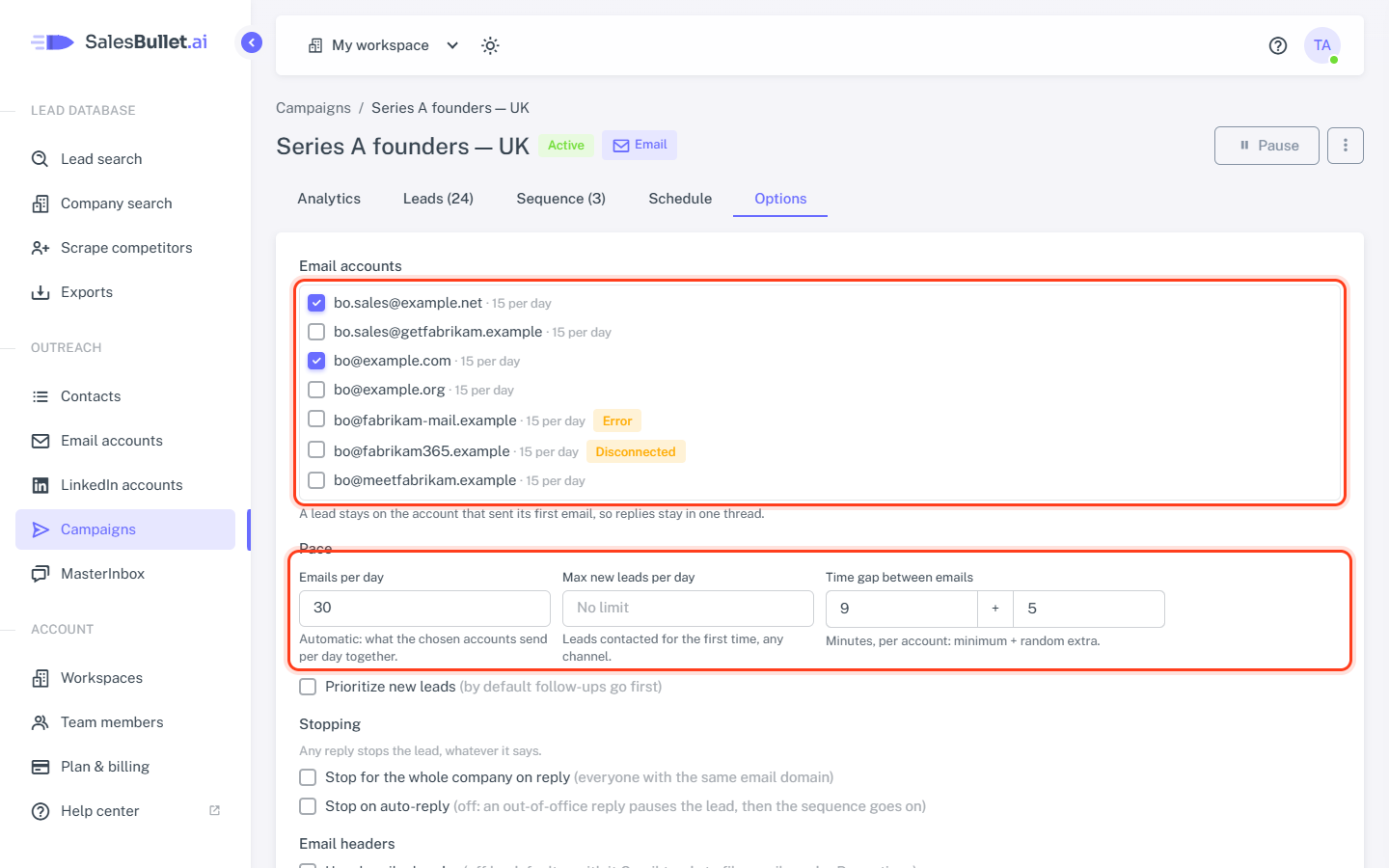
Email accounts
Tick the accounts the campaign sends from. Each shows its daily limit, and a status such as Paused when it can't send now.
- A lead stays on the account that sent their first email, so the follow-ups and their replies stay in one thread.
- An account can send for several campaigns; its daily limit counts them all together.
LinkedIn and Email + LinkedIn campaigns also have LinkedIn accounts to tick — see LinkedIn limits.
Pace
- Emails per day — the most the campaign sends in a day, all its accounts together. At first it's automatic: what the chosen accounts send per day together. Type a lower number to send less; Back to automatic undoes it.
- Max new leads per day — how many leads get their first message each day, on any channel. Follow-ups don't count. Empty: no limit.
- Time gap between emails — the minutes each account waits between two of this campaign's emails: a minimum plus a random extra, 9 + 5 at first. Each account then sends one every 9 to 14 minutes.
- Prioritize new leads — follow-ups go first unless you tick this.
Each email account's own limits apply too — the lower one wins. See sending limits.
Stopping
Any reply stops the lead, whatever it says — always. It also stops the same person in your other campaigns.
- Stop for the whole company on reply — when someone replies, the others in this campaign with the same email domain stop too. Never for addresses like gmail.com.
- Stop on auto-reply — off, an out-of-office reply pauses the lead for 7 days, then the sequence goes on. On, it stops the lead.
Email headers
- Unsubscribe header — off by default: with it, Gmail tends to file emails under Promotions. When it's on and someone unsubscribes from their mail app, they stop and go on your do-not-contact list.
- CC and BCC — up to 10 addresses each, separated by commas, copied on every email of the campaign.
Note
Email accounts bought in SalesBullet email company addresses only. If a campaign sends only from those, leads with a Gmail, Outlook.com … address are skipped, and the campaign's page says how many. Add one of your own accounts to reach them.